
Remove the router and power adapter from the box. If you received additional routers, these will serve as your WiFi extenders. Homes under 2,500 sq ft typically do not need extenders.
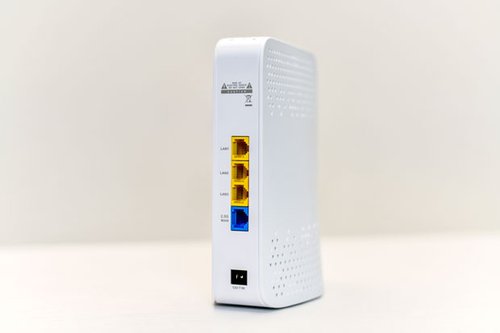
On the back of the router you’ll see:
Set the router aside for now.
Before unplugging your old router, make sure you write down your current WiFi network name (SSID) and password.
If you set up your new network with the same name and password, all of your devices should connect automatically after you finish setting up your new router.
If you create a new network name and password, you will have to manually reconnect devices like laptops and tablets, smart TVs and other smart devices in your home.
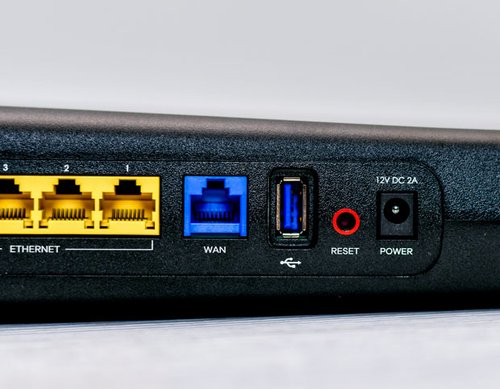
Reset your old router to the factory settings to erase any personal data. On the back of the router, you will see the word “RESET” next to a red circle around a recessed button.
Use a thin object like a paperclip to depress and hold for 30 seconds. Release and give the router 2 minutes to reboot.
Unplug your old router from the power source.
Disconnect the Ethernet cable from the back of the old router and leave the other end plugged into the wall.
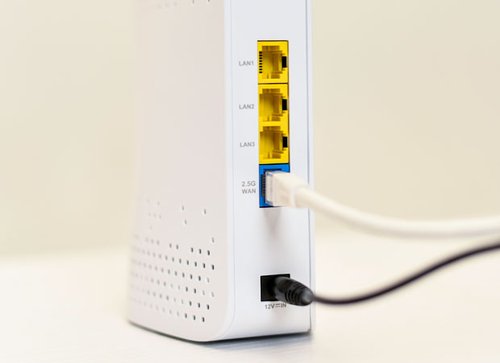
Plug the power adapter into the router, then into a wall outlet.
Plug the Ethernet cable into the blue 2.5G WAN port.
If you would like to connect other devices directly to your router, like gaming consoles, you can plug them into the yellow LAN ports. Otherwise, you can ignore them.
If you received additional WiFi extenders, set them up now. If you did not, move on to step 6.
Plug each extender into a wall outlet. Extenders do not require an Ethernet connection.
Ensure router and extenders are approximately 25 feet apart.
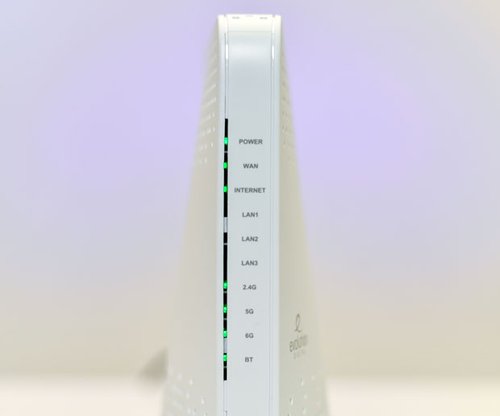
After plugging in the router, wait for the power light to turn solid. This should take about ten seconds.
The lights marked WAN and Internet will start blinking.
After approximately 3 minutes, lights will stop blinking. You’re now ready to move on to part 2: finishing setup in the Plume Home app.

Your EPB Smart Net Plus WiFi service comes with local, expert 24/7/365 support from the EPB Tech ProsSM.


